Introducing CoreStepPrep Study Objectives
Choose USMLE Step 1, USMLE Step 2, or a shelf objective. Keep Build and Dashboard focused with saved preferences and core-specific practice and analytics.
Your study focus changes throughout medical school. One month you may be preparing for USMLE Step 1. Later, you may be working through a Surgery rotation, getting ready for an Internal Medicine shelf, or bringing everything together for USMLE Step 2.
Today, we’re introducing **CoreStepPrep Study Objectives**: a new way to keep your question building and Dashboard focused on what you’re preparing for right now.
Choose an objective once on the CoreStepPrep website, and that selection carries between **Build Assessment** and **Dashboard**. When you select a shelf objective, both your practice questions and your analytics focus on that core.
One objective, shared across Build and Dashboard
Look for **Current Study Objective** near the top of Build or Dashboard. Select **Change study objective** to open the new selection window, choose your exam or shelf, and select **Apply objective**.
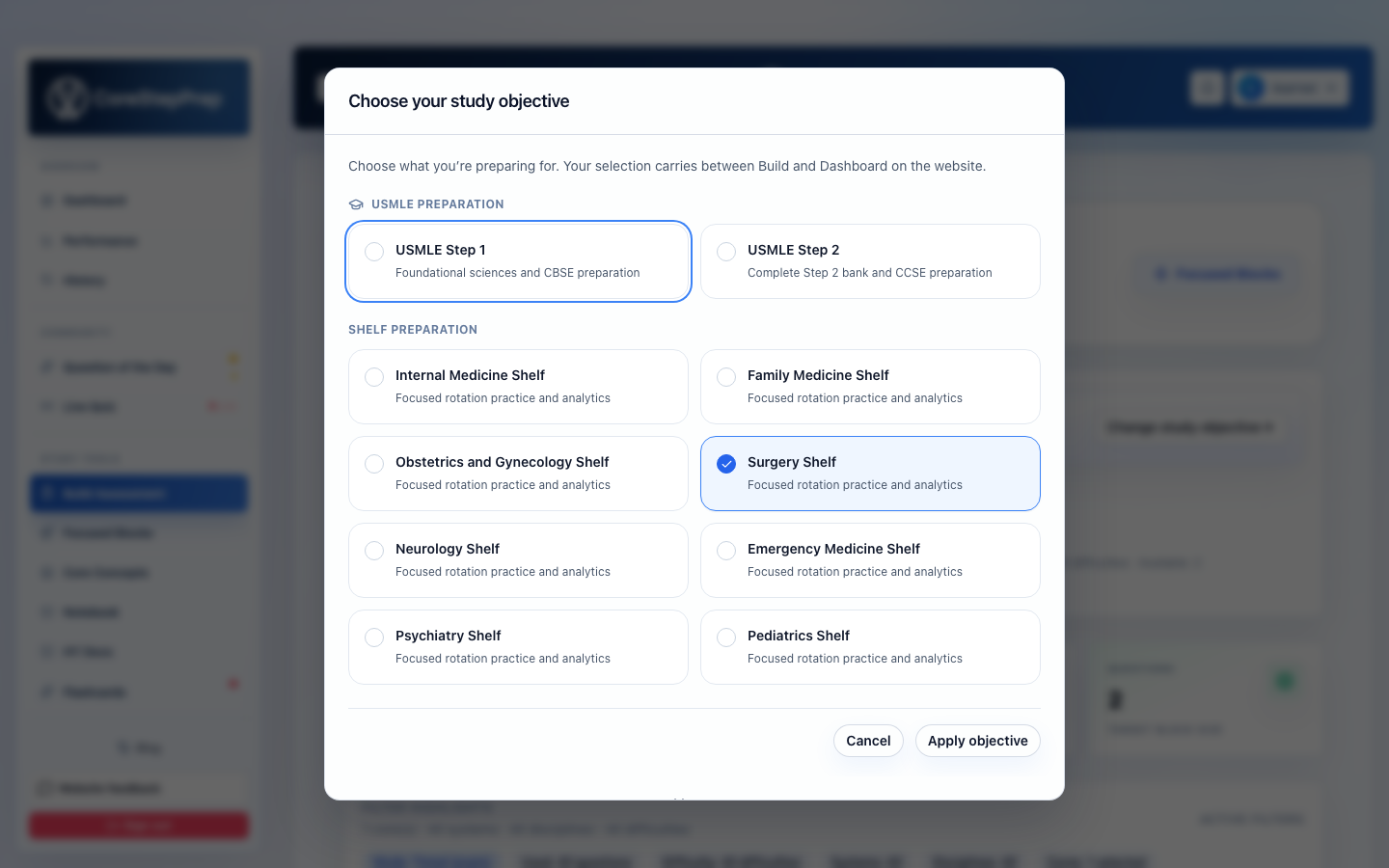
Your choice is saved to your account. You can move between the two pages, return later, or sign in through another browser without setting up the same focus again. You can change your objective from either page whenever your preparation changes.
The selector gives you two ways to study:
- **USMLE Step 1** for the Step 1 question bank.
- **USMLE Step 2** for the complete Step 2 question bank.
- **A shelf objective** for focused practice and analytics within a specific Step 2 core.
USMLE Step 2 still includes the entire Step 2 bank. Choosing a shelf narrows the website’s study view to the core you selected.
Eight shelf objectives for your clinical rotations
Students with full Step 2 access can choose from eight shelf objectives:
- **Internal Medicine Shelf**
- **Family Medicine Shelf**
- **Obstetrics and Gynecology Shelf**
- **Surgery Shelf**
- **Neurology Shelf**
- **Emergency Medicine Shelf**
- **Psychiatry Shelf**
- **Pediatrics Shelf**
For example, if you are starting your Surgery rotation, choose **Surgery Shelf**. Build will focus on Surgery questions, and Dashboard will show your progress with those questions. When you move to Pediatrics, change your objective to **Pediatrics Shelf** and continue with the same workflow.
**Medical Practice** remains a selectable core filter when your objective is **USMLE Step 2**. It does not have a separate shelf objective.
Build assessments around your current focus
A shelf objective applies its core automatically in Build. You can continue refining the available questions with the remaining filters, without having to select the same core for every assessment.
Your objective also carries into **Build for me**, so Smart Build selects from the relevant shelf’s questions. Website quick-practice actions follow the same focus.
When your objective is **USMLE Step 2**, all nine existing core checkboxes remain available. You can build a mixed block, select several cores, or include Medical Practice. These are filters for that assessment; checking them does not change your saved objective or narrow your Dashboard.
Changing your objective preserves your assessment mode, requested question count, difficulty, and used-question settings. Selections tied to the previous topic are cleared so they do not silently limit your new objective.
Saved pools and presets still work, too. If a pool conflicts with your current objective, Build gives you an explicit choice to cancel or switch objectives and load it. That keeps your current focus clear when you return to a previous study setup.
See the same Dashboard through a shelf-specific view
The Dashboard keeps its analytics sections when you select a shelf. The difference is the set of questions those sections describe.
With **Internal Medicine Shelf** selected, for example, your Dashboard shows:
- **Accuracy and correct/incorrect totals** for Internal Medicine questions.
- **Bank usage** based on the relevant core’s questions, including how many you have seen and how many remain.
- **Pacing and time analysis** for those questions.
- **Daily activity and accuracy trends** within that core.
- **Performance by test and date**, with mixed-core assessments contributing their matching responses.
- **System and discipline breakdowns** within the selected shelf.
- **Score distribution and peer comparisons** based on performance on that core’s questions.
The score distribution therefore changes with your objective. If you select Neurology Shelf, you see a comparison based on Neurology questions, rather than the complete Step 2 bank. Students do not have to select that objective themselves to contribute eligible responses to its comparison group.
Your existing qualifying answers count, including answers submitted through the website, iOS/macOS apps, or assessments launched through the ChatGPT plugin. You do not need to repeat questions to begin seeing shelf-specific progress.
Selecting an objective filters your view; it does not erase your study history. Existing date windows and reset settings still apply.
Keep daily progress connected to your rotation
When you are viewing a shelf, daily-goal progress and goal-completion streaks reflect questions from that shelf. Your daily question target remains shared, so you do not need to create a different target for every rotation.
Your overall activity streak remains separate. This lets you see how consistently you are practicing your current shelf while preserving the broader picture of your ongoing activity, including the existing Question of the Day behavior.
Move between rotation prep and comprehensive review
A practical way to use Study Objectives is to match your selection to the work you are doing that week:
- **At the start of a rotation:** select its shelf objective and review your existing progress.
- **During the rotation:** build focused assessments, review your answers, and use the Dashboard’s system and discipline breakdowns to identify areas to revisit.
- **Before a mixed review session:** switch to USMLE Step 2 and choose the cores you want to include.
- **As your preparation changes:** update your objective from Build or Dashboard.
You can move between focused shelf preparation and the complete Step 2 bank whenever you need to. The objective gives your website study sessions a consistent starting point.
Available now on the CoreStepPrep website
Study Objectives are available now in Build Assessment and Dashboard.
Your available choices follow your existing bank access. Free users retain the USMLE Step 1 and USMLE Step 2 sample objectives; shelf objectives require full Step 2 access.
This release brings Study Objectives to the website. The iOS and macOS apps continue to use their existing bank selectors and assessment controls. ChatGPT-generated assessment links continue to open the questions requested by those links, subject to your bank access. Existing assessments resume with their original questions, and Performance and History retain their current behavior.
**Ready to set your focus?** Open Build Assessment, select **Change study objective**, and choose what you’re preparing for next.